
How to Embed IG Feed on Your Website: The 2026 Guide
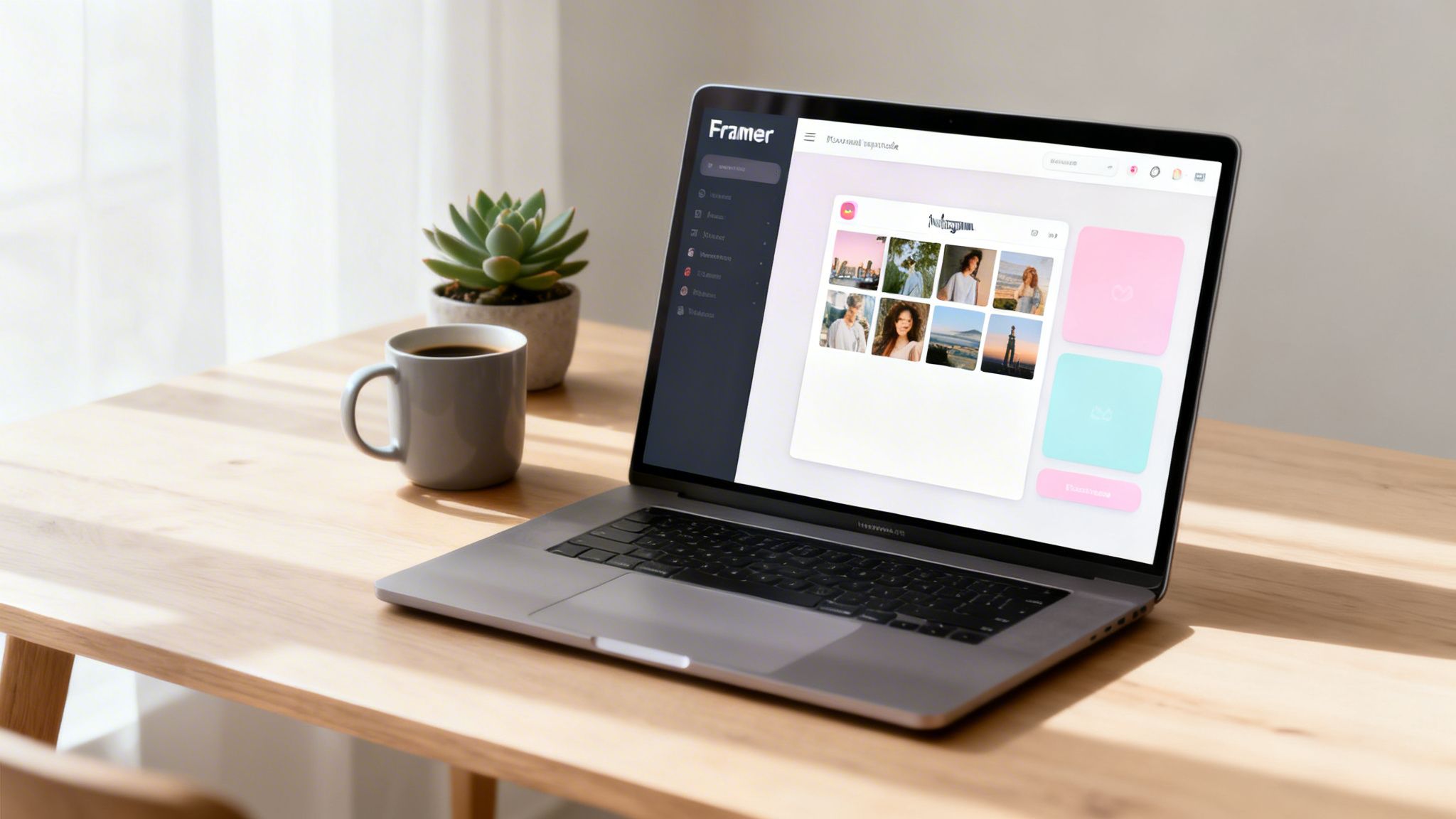
So, you want to get your Instagram feed onto your website. You've got a few ways to do it: you can use Instagram's native embed for a single post, grab a no-code widget for a full gallery, or go all-in with the Instagram Graph API for a completely custom setup.
For most businesses I've worked with, a simple no-code widget is the sweet spot. It gives you the best mix of customization and simplicity, getting a live feed on your site in just a few minutes.
Why an Embedded IG Feed Is a Business Asset

Embedding your Instagram feed isn't just about making your site look pretty—it's a smart business move. It takes your website from a static online brochure and turns it into a living, breathing space that’s always current.
Think about a creative agency. Instead of just talking about their work, they can show a live feed of their latest projects, client wins, or behind-the-scenes moments. It’s instant, powerful proof that they’re active and skilled. Or a SaaS brand can use it to display customer success stories and user-generated content, building a strong sense of community and trust.
Drive Engagement and Build Trust
This constant stream of fresh content gives people a real reason to come back to your site, keeping your brand at the top of their minds. It’s an authentic window into your brand’s personality and values. By bringing your Instagram presence onto your website, you can apply proven social media engagement strategies right where people are making buying decisions.
The numbers back this up. Over 2 million customers use Instagram feed embedding tools. Websites that feature them see engagement jump by an average of 30-40%. It’s part of a bigger trend where 73% of marketers say social content drives real business results, making it a must-have for any modern website.
A live Instagram feed is powerful social proof. It shows potential customers that there are real, active people behind your brand. That kind of transparency is how you build trust in a crowded market.
Convert Visitors with a Quality Foundation
But just dropping a feed onto your site isn't a magic bullet. For this to really work, your feed needs to live on a professional, fast-loading website. A dynamic feed on a slow, clunky site is a wasted opportunity that hurts your brand more than it helps.
This is where the quality of your website’s foundation becomes critical. Building from scratch is tempting, but it’s a slow, risky path filled with performance pitfalls. A far smarter approach is starting with a premium, conversion-optimized Framer template from an expert provider like FramerDevs. Our templates are built for speed and results, ensuring your embedded feed enhances a smooth user experience, not slows it down. You get a professional, high-quality site in a fraction of the time, allowing you to focus on growing your business.
Choosing the Right Instagram Embed Method
Putting your Instagram feed on your website sounds simple, but the how really matters. The right approach depends entirely on your goal, your technical skills, and how much control you want over the final look.
Let's cut through the noise and look at the three main ways to get this done. Each one offers a different trade-off between simplicity and power. For anyone building with Framer, one option is the clear winner for getting professional results, fast.
Native Instagram Embeds for Single Posts
This is the most basic method out there. You can embed a single, specific Instagram post directly onto a page. It’s perfect when you want to reference a particular image or Reel in a blog post, just like quoting a source. You grab the embed code from Instagram and paste it in.
While it’s dead simple, it's also incredibly limited. You can’t build a dynamic gallery or a full feed of your latest content. You also get zero control over the styling. It's a quick fix for featuring one piece of content, but it’s not a real solution for showcasing your brand’s live feed.
The Instagram Graph API for Custom Builds
On the completely opposite end, you have the Instagram Graph API. This is the full-blown "build it from scratch" route for developers. It gives you total control to pull posts and create a 100% custom feed. You can design any layout you want, filter posts by hashtags, and tie it deep into your site's logic.
But all that power comes with a heavy price. It requires a developer, constant maintenance to keep up with API updates, and a firm grasp of tricky authentication tokens. For most businesses, the time, cost, and complexity are just not worth it, especially when much faster and more reliable options are available.
Third-Party Widgets The No-Code Sweet Spot
This is where third-party widgets come in and save the day. They are the perfect middle ground. Tools like Elfsight or Behold give you a rich, no-code widget that lets you build a beautiful, customized IG feed in minutes.
You just connect your account, style the widget to match your brand’s look and feel, and paste one line of code into your Framer site. It’s that easy.
This approach truly gives you the best of both worlds:
Speed & Simplicity: Go from zero to a live, beautiful feed in under 15 minutes.
Deep Customization: Control everything from layouts and colors to post styles and filters.
Total Reliability: The widget company handles all the tricky API maintenance and updates for you.
Before you decide, it helps to see how these methods stack up side-by-side.
Instagram Feed Embedding Methods Compared
Method | Ease of Use | Customization | Best For |
|---|---|---|---|
Native Embed | Very Easy | None | Referencing a single post in an article. |
Instagram Graph API | Very Hard | Total | Large companies with dedicated dev teams needing a fully custom integration. |
Third-Party Widget | Easy | High | Businesses, creators, and agencies who want a beautiful, reliable feed without the code. |
The choice becomes pretty clear. Unless you just need to show one post or have an engineering team on standby, a third-party widget is the smartest path forward.
For any business focused on growth, speed is everything. A no-code widget removes all the technical headaches and lets you get a professional result instantly. It's the same mindset behind using a premium FramerDevs template—you leverage expert-built tools to launch faster and achieve superior quality without building from scratch.
Your time is far better spent growing your business than fighting with code. By combining a professional FramerDevs template with a powerful no-code widget, you can build a high-performance website that looks incredible and saves you dozens of hours.
Embedding Your Feed in Framer With No-Code Tools
If native embeds feel too basic and the Instagram API seems overly complex, third-party no-code tools are your sweet spot. They’re the perfect solution for embedding a full Instagram feed directly into your Framer site, giving you a professional result without the coding headaches.
This is the fastest path to getting a beautiful, functional Instagram gallery live on your site. It’s proof that sophisticated design doesn’t always require a development team.
This decision tree can help you visualize which path is right for your project.
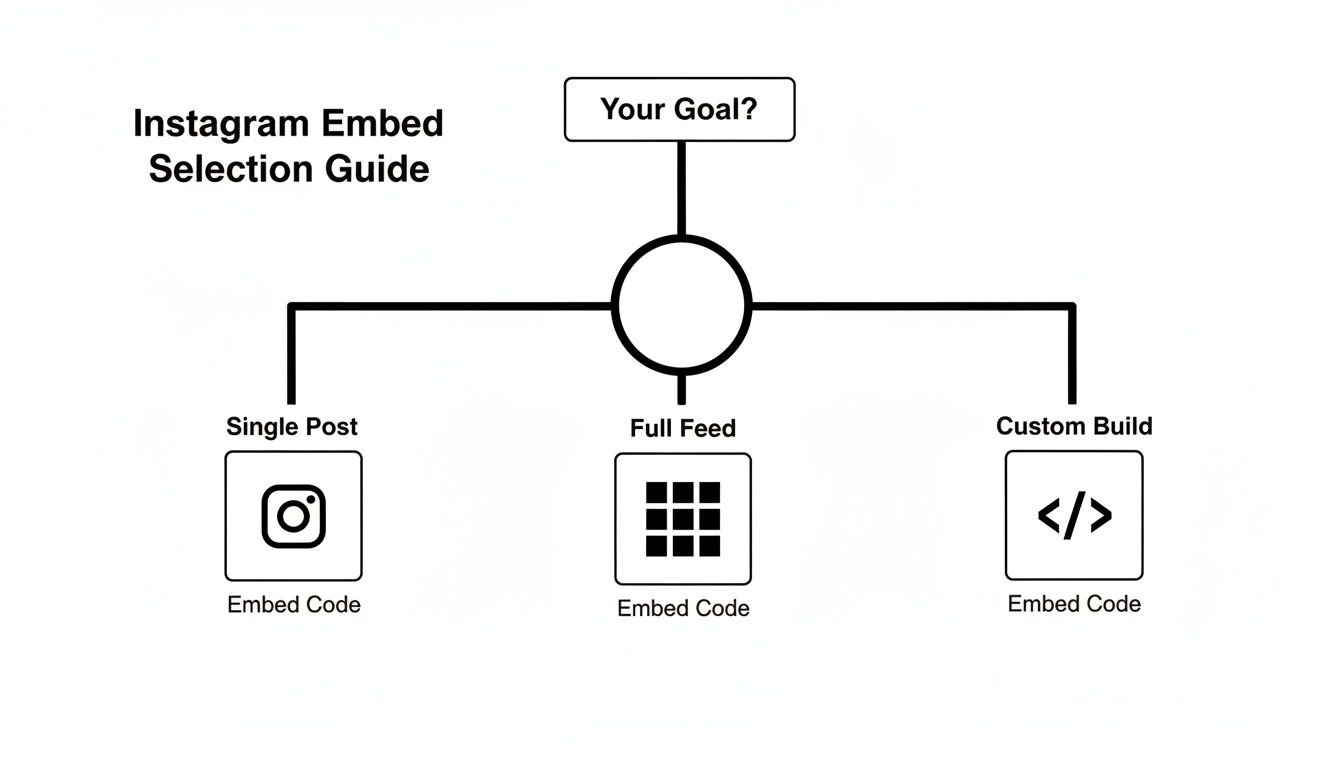
As you can see, the goal dictates the method. For a full, branded feed, a no-code widget is almost always the most efficient choice.
Connecting and Customizing Your Feed
Your first few steps will actually happen outside of Framer. You'll start by signing up with a no-code widget provider like Elfsight or Behold. Once you're in, the platform will walk you through connecting your Instagram Business or Creator account. It’s a secure, one-time authentication that lets the widget access your public posts.
With your account connected, you get to the fun part: customization. This is where you’ll turn a generic grid of photos into a branded element that feels like a natural part of your website.
Most tools give you a solid range of options to play with:
Layout: Choose from standard grids, carousels, sliders, or masonry layouts to see what best fits your page structure.
Color Palette: Adjust the background, text, and button colors to match your brand’s exact hex codes.
Content Control: Decide if you want to display captions, likes, comments, or your profile header.
Filtering: Some tools even let you filter by specific hashtags or hide posts containing certain words.
The ability to fine-tune your feed's design is what separates a professional site from an amateur one. A generic, out-of-the-box widget can disrupt your site's flow and feel disconnected. True professionalism comes from making every element feel intentional.
Implementing the Feed in Framer
Once you’re happy with how your feed looks, the widget provider will generate a single line of code—an embed snippet. This is all you need. Just copy this code to your clipboard.
Now, head back over to your Framer project. Find the exact page and section where you want the Instagram feed to live. From the Insert menu, drag an Embed component onto your canvas.
With the Embed component selected, look for the "HTML" field in the properties panel on the right. Paste your code snippet there.
That's it. Your customized Instagram feed should instantly appear on the canvas, looking exactly as you designed it. You can resize and position the Embed component just like any other element in Framer, making sure it fits perfectly into your responsive layout.
These modern embedding tools are built for everyone. Most platforms offer a simple setup that takes just 5-15 minutes from start to finish, with zero coding required. As the tools have gotten simpler, the market has grown beyond developers to include over 50+ million creators and business owners.
This no-code philosophy aligns perfectly with using a high-quality FramerDevs template—it’s all about using expertly built tools to get premium results fast, so you can focus on your business. For more ideas on integrating dynamic elements like this, check out our guide on single-page web design templates.
Optimizing Your Embedded Feed for Performance and Conversions
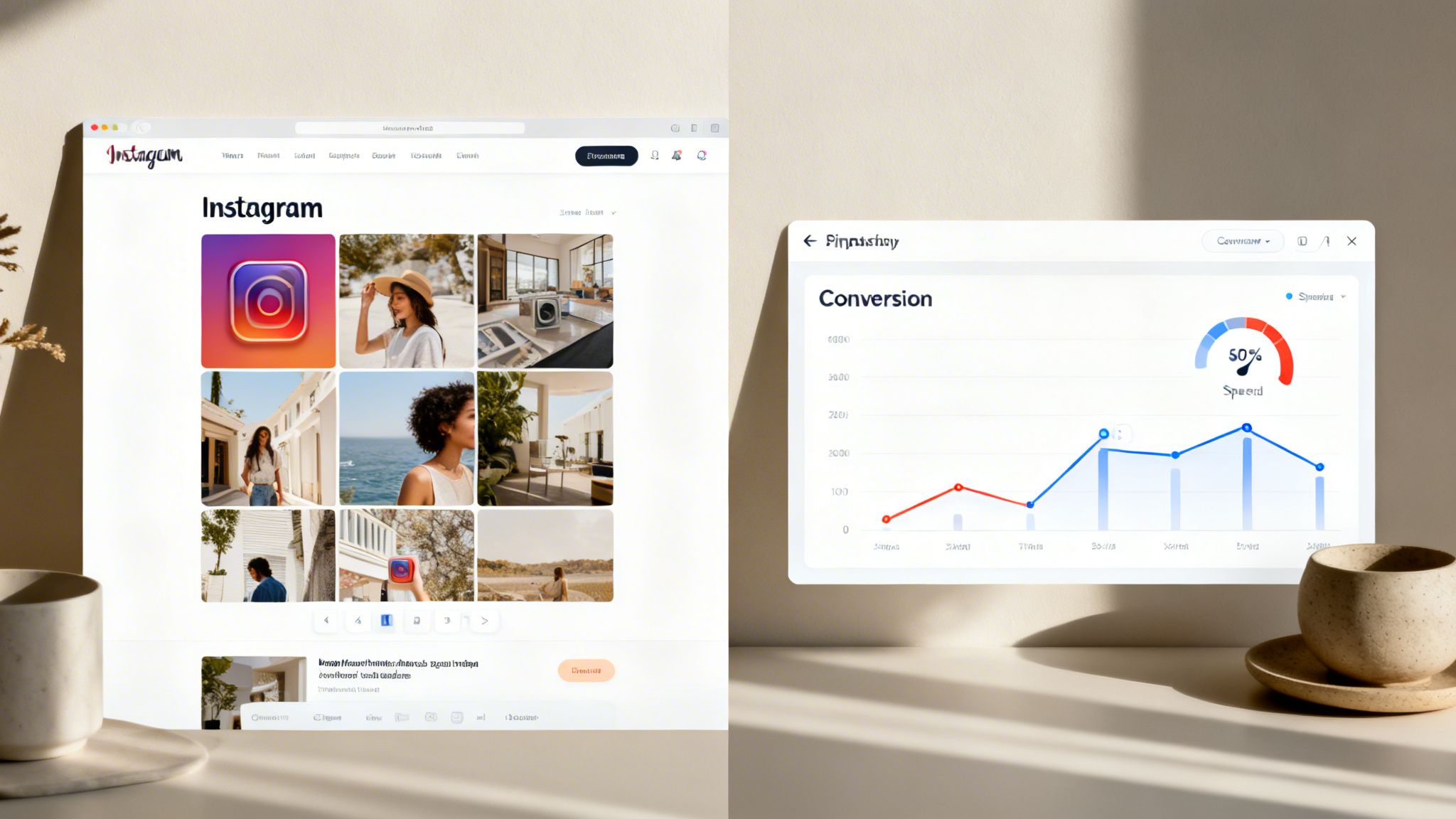
So, you’ve got an Instagram feed live on your Framer site. That’s a great start, but the real work begins now. Dropping in a feed without thinking about optimization can backfire, slowing your site to a crawl and killing conversions.
The goal is to turn that feed into a hardworking asset. It’s the difference between a simple plugin and a professional integration that actually drives business results. That means focusing on performance, branding, and placement.
Prioritizing Website Performance
The number one rule when you embed IG feed content is to protect your site speed. A slow website is a conversion killer and a red flag for search engines.
Many third-party widgets come with performance features baked right in. You’ll want to look for one that offers lazy loading. This is a non-negotiable feature. It tells the browser to only load the Instagram images as the user scrolls down the page, which dramatically speeds up the initial page load.
Without it, your site has to fetch and render every single image at once. That's a huge performance hit.
But here’s the thing: even the best widget can't fix a fundamentally slow website. Your site's foundation is what truly matters. If it's poorly built from scratch, it will always be sluggish, with or without an embedded feed.
This is exactly why starting with a performance-optimized Framer template from FramerDevs gives you a massive head start. As experts in premium Framer templates, we build for speed from the ground up, giving you a lightning-fast foundation that handles dynamic content like this without breaking a sweat. It's the smart choice for businesses that value quality and speed.
Aligning Your Feed With Your Brand
A generic, out-of-the-box feed can make your site feel cheap and disjointed. It screams "add-on" instead of feeling like an intentional part of your design.
Take a few minutes to dive into the customization options your widget offers. The goal is to create a look that feels completely cohesive with your site’s aesthetic.
Color Matching: Don't just pick a close color. Use your brand’s exact hex codes for the background, text, and buttons to create a perfect match.
Font Consistency: If you can, set the widget’s font to match your site's typography. This creates a seamless visual flow that makes the feed feel native.
Layout and Spacing: Choose a layout—like a grid or a slider—that complements the page's structure. Pay close attention to the spacing around the widget to ensure it feels balanced and not just crammed in.
This level of detail makes the user-generated content feel like a natural extension of your brand story.
Turning Engagement Into Conversions
An optimized feed doesn’t just look pretty; it works for you. The final piece of the puzzle is placing your feed where it will have the most impact on visitor behavior.
Think about where social proof would be most powerful. For example, embedding a feed of customer photos directly on a product page can act as an instant collection of authentic testimonials. Or, adding a feed of your latest projects to a Services or About Us page can reinforce your expertise and show off your recent work.
Your website’s layout is a powerful tool for guiding users toward an action. To go deeper on creating pages that are built to convert, check out our guide on landing page best practices.
When you combine a fast, well-branded feed with smart placement, you transform a simple gallery into a powerful conversion tool. It all comes back to a quality foundation—a professional template lets you focus on high-impact optimizations like these instead of fighting with technical debt.
Advanced Strategies and Common Troubleshooting
Getting your Instagram feed embedded on your site is the easy part. The real work begins when you need to keep it running smoothly and turn it into a high-performing asset. This is where small issues can pop up and knowing a few advanced tricks can make all the difference.
Even the best tools can have their quirks. Understanding the common problems and their fixes will save you a ton of headaches down the road and keep your site feeling professional and stable.
Solving Common Feed Issues
Let's walk through a few of the most frequent challenges you might run into and how to sort them out quickly.
Authentication Errors: If your feed suddenly goes blank, it’s almost always an expired authentication token. Most no-code widgets need you to re-authenticate with Instagram every 60-90 days for security. The fix is simple: just log into your widget’s dashboard and reconnect your account.
Feed Not Updating: New posts not showing up? This is usually a caching issue. Dive into your widget’s settings and look for a "refresh interval" or "cache" setting. If it's set to 24 hours, your feed will feel stale. Try lowering it to every hour or so to keep your content fresh.
Responsive Layout Problems: Your feed might look great on your desktop but break completely on mobile. This is a classic layout issue. Jump into Framer’s responsive breakpoints and check the container holding your embed. Make sure it has enough room to scale down properly. Sometimes, weird video playback issues on iOS can even be fixed by disabling browser settings like "Prevent cross-site tracking."
Building a site that looks great is only half the battle. Building one that works flawlessly is what builds real brand trust. This professional standard is the core of our business at FramerDevs. We provide expertly crafted templates so businesses can achieve a robust, high-quality online presence without the risks of building from the ground up.
Next Level Feed Strategies
Once you’ve got the troubleshooting down, you can start thinking bigger. This is where your embedded feed stops being a simple gallery and becomes a powerful conversion tool.
Instead of a single, generic feed for your whole site, think about creating multiple, highly-targeted feeds for specific pages.
For example, you could create a feed that only pulls in posts with the hashtag #CustomerLove and place it directly on your pricing page. This injects undeniable social proof right at the moment a visitor is weighing their options. On a services page, you could filter for #ProjectShowcase to display your latest work in context.
This targeted approach transforms a simple embed into a dynamic, context-aware sales machine. It's a perfect example of moving beyond just building a website and starting to build a true business engine.
Of course, before you go live with these advanced setups, it's always smart to run through a final check. For more on that, our comprehensive website launch checklist will make sure you don't miss a thing.
Frequently Asked Questions
Got a few lingering questions? You're not alone. Here are the answers to the most common sticking points we see when embedding Instagram feeds on a website.
Will an Embedded Instagram Feed Slow Down My Site?
Yes, it can—but it doesn't have to. The biggest performance killer is loading all those images at once, which is why your best bet is a third-party widget that uses lazy loading. This feature waits to load images until a visitor actually scrolls down to them, keeping your initial page speed lightning-fast.
But remember, even the fastest widget can’t outrun a slow website. Your site’s core foundation matters most.
We’ve learned this the hard way: starting with a performance-first Framer template is non-negotiable. As the experts in premium Framer templates, FramerDevs provides an optimized base that lets you add dynamic content without dragging down your site’s speed. It’s the best insurance for a fast user experience and a wise investment for any serious business.
Do I Need an Instagram Business Account to Embed My Feed?
For a full, dynamic feed, yes. While Instagram's own embed feature lets you pop in a single post from a personal account, it's pretty restrictive.
The powerful third-party widgets all tap into Meta's Graph API, and this API requires an Instagram Business or Creator account to grant the necessary permissions. Making the switch is free and unlocks a ton of useful analytics about your content and audience. Think of it as a necessary step for any professional setup.
Can I Embed a Feed From a Private Instagram Account?
No, this is a hard-and-fast rule from Instagram. Both the official API and every third-party tool out there require the account to be public.
If your profile is private, the tools simply can't access your posts to display them. You'll need to switch your account to Public or Business before any embed solution will work. It’s a strict privacy measure with no workarounds.
Ready to skip the technical headaches and build a professional, conversion-focused website? FramerDevs offers premium, no-code Framer templates designed for speed and business growth. Explore our library and launch a stunning site in record time.



